How to Make Minecraft Bedrock Look Like Legacy Console
 mcpecentraladmin
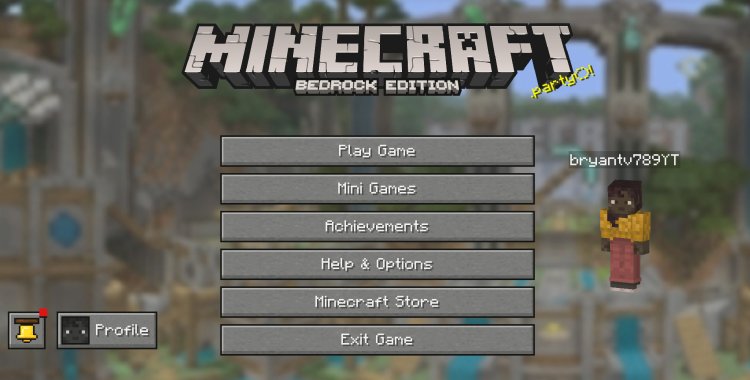
Are you a fan of the classic Minecraft Legacy Console Edition look and feel? Do you miss the nostalgic UI, textures, and visual style from older console versions? You’re not alone. Many Minecraft Bedrock players want that same retro console experience on modern platforms like Minecraft Bedrock Edition on mobile, Windows 10/11, Xbox, or PlayStation. The good news is that with the right texture packs and addons, you can transform your Minecraft Bedrock into a visual experience that closely resembles the Legacy Console Edition.
In this guide, you’ll learn how to make Minecraft Bedrock look like Legacy Console by installing classic-themed texture packs and addons.
What You Need to Make Minecraft Bedrock Look Like Legacy Console
To change your Minecraft Bedrock visuals to a Legacy Console style, you’ll need the following:
1. Console UI Texture Pack
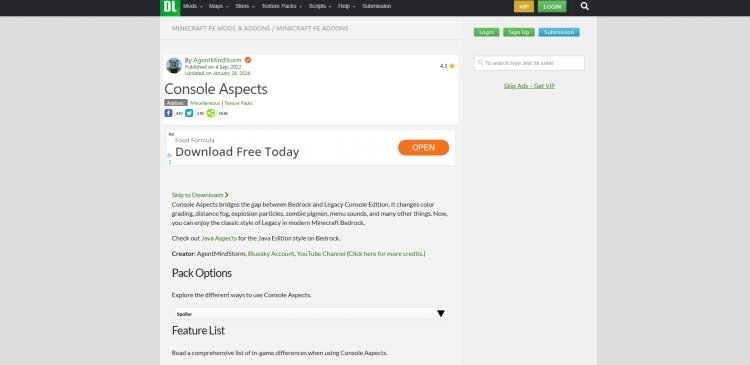
This texture pack changes your Minecraft Bedrock menus and interface to look like the older Legacy Console Edition UI.
Download link: https://mcpedl.com/console-ui/
2. Console Aspects Texture Pack
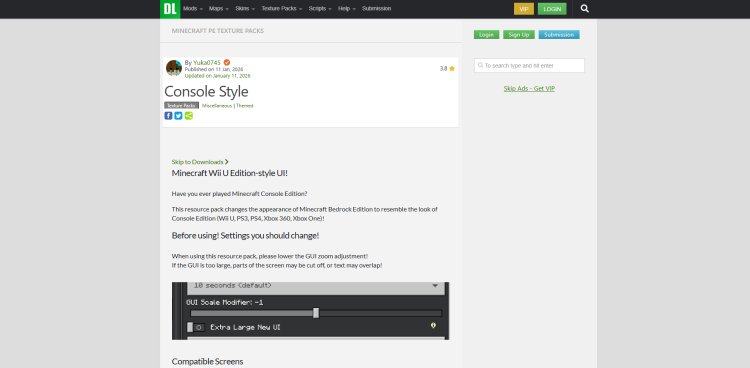
This addon adjusts block textures, item models, and visual aspects to better match the console aesthetics.
Download link: https://mcpedl.com/console-aspects/
These two packs combined work together to provide a comprehensive Legacy Console look, from inventory screens to block textures.
Step-by-Step: Installing Texture Packs and Addons
Follow these steps to get the Legacy Console look on Minecraft Bedrock Edition:
1. Download the Resource Packs
Head to the download links above:
-
Console UI: Click download, then save the pack to your device.
-
Console Aspects: Download and save this texture pack as well.
These packs are typically in .mcpack format, which Minecraft Bedrock Edition can import automatically.
2. Import Packs into Minecraft Bedrock
After downloading:
-
Open Minecraft Bedrock Edition on your device (mobile, PC, Xbox, etc.).
-
Use the Resource Pack Importer prompt that appears when opening a .mcpack file.
-
If the prompt doesn’t appear, you can also import through the Settings:
-
Go to Settings > Storage > Import and select the downloaded pack files.
-
Both packs should now appear in your “My Packs” section.
3. Activate the Packs
To apply the Legacy Console look:
-
Go to Play > Create New World (or edit an existing world).
-
Go to Resource Packs or Behavior Packs depending on the pack type.
-
Find Console UI and Console Aspects under Available Packs.
-
Click each pack and select Activate or Add to World.
Once both packs are active, launch your world.
Why These Packs Work
-
Console UI replaces menus, fonts, buttons, and layouts to replicate the Legacy Console Edition interface.
-
Console Aspects modifies textures and game visuals to feel more aligned with the console-era style assets.
-
Together, they deliver a nostalgic and unified experience without modifying core Minecraft files or requiring mods outside the Bedrock ecosystem.