How to Download MakeUp – Ultra Fast Shaders (Complete Minecraft Guide)
 mcpecentraladmin
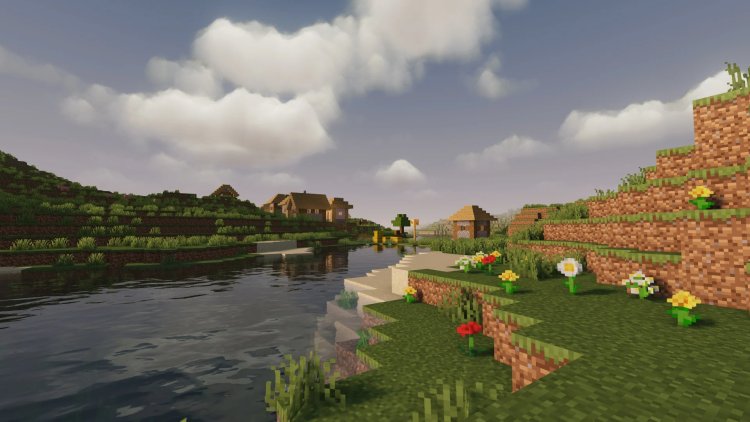
If you’re looking for how to download MakeUp – Ultra Fast shaders for Minecraft, this step-by-step guide will show you the fastest and safest way to install them using Iris Shader Loader.
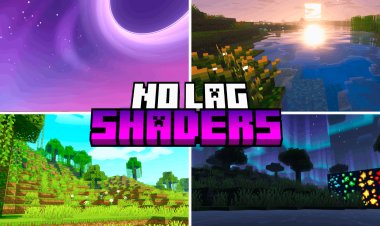
MakeUp – Ultra Fast is one of the best performance shaders for Minecraft, designed for low-end PCs, laptops, and integrated graphics, while still improving lighting, shadows, and overall visuals.
What Are MakeUp – Ultra Fast Shaders?
MakeUp – Ultra Fast Shaders are lightweight Minecraft shaders built to:
-
Boost FPS
-
Improve lighting and shadows
-
Add subtle realism without lag
-
Run smoothly on low-end systems
They’re perfect if you want shaders without sacrificing performance.
Step 1: Download Iris Shader Loader (Required)

Iris is the recommended shader loader for modern Minecraft and works perfectly with MakeUp – Ultra Fast shaders.
Download Iris Shader Loader here:
https://www.irisshaders.dev/
Why use Iris?
-
Better FPS than OptiFine
-
Actively updated
-
Works with Sodium
-
Excellent shader compatibility
Download the Iris installer .jar file and save it somewhere easy to find.
Step 2: Download MakeUp – Ultra Fast Shaders
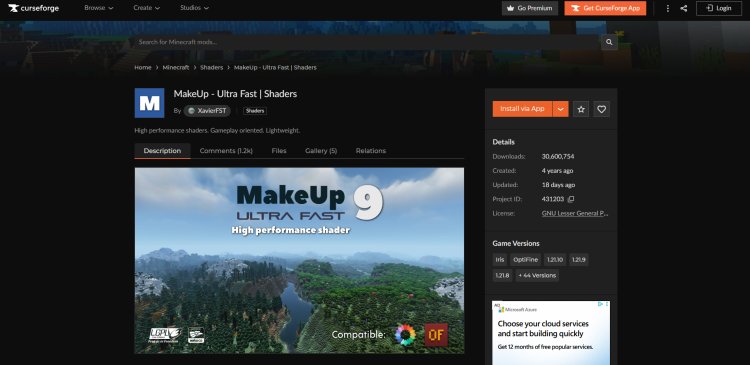
Next, download the shader pack itself.
???? Download MakeUp – Ultra Fast shaders from CurseForge:
https://www.curseforge.com/minecraft/shaders/makeup-ultra-fast-shader
Important:
-
Select the shader version compatible with your Minecraft version
-
Make sure it supports Iris Shader Loader
-
Download the file as a
.zip(do not extract it)
Step 3: Install Java (If You Haven’t Already)

Iris requires Java to run the installer correctly.
Download Java (Java 21 recommended):
https://www.oracle.com/java/technologies/downloads/#java21
NOTE:
You may need to restart your PC after installing Java so it applies properly to your system.
If Iris won’t open, Java is usually the issue.
Step 4: Install Iris Shader Loader
-
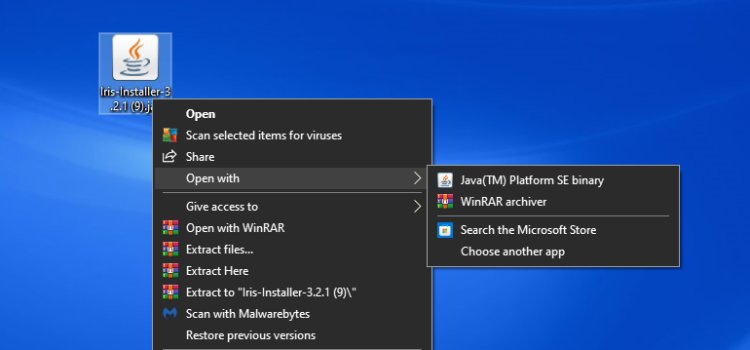
Locate the Iris Installer
.jarfile -
Right-click the file
-
Choose “Open with Java”
-
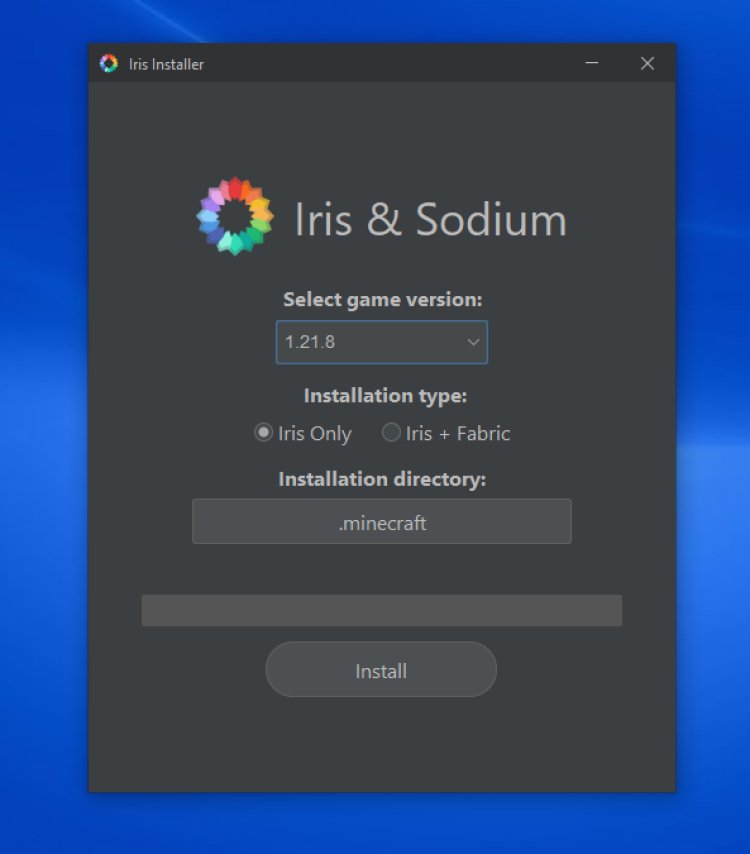
Select your Minecraft version
-
Click “Install”
Once finished, Iris will create a new Minecraft profile automatically.
Step 5: Select the Iris Installation in Minecraft Launcher

-
Open Minecraft Launcher
-
Click “Installations” at the top
-
Make sure “Modded” is enabled under Versions
-
Select the Iris installation
-
Save and return to the launcher
This ensures Minecraft launches using Iris instead of vanilla Minecraft.
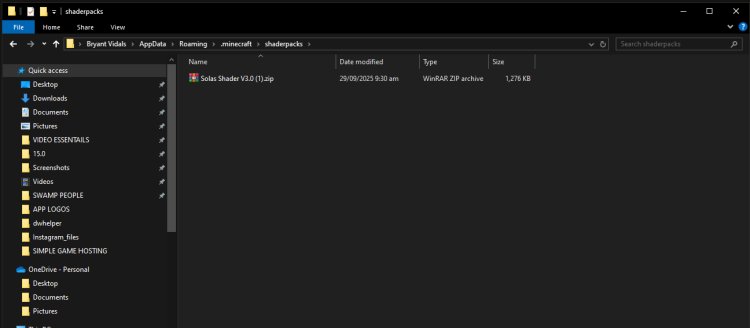
Step 6: Add MakeUp – Ultra Fast Shaders to Shaderpacks Folder
-
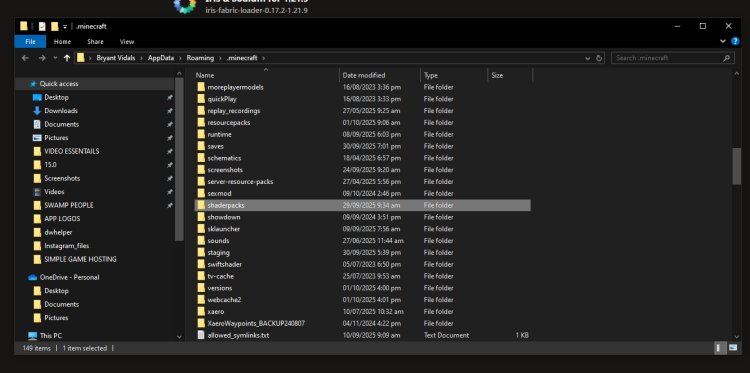
Open your Minecraft Installation Folder
-
Find the “shaderpacks” folder
-
Drag and drop MakeUp – Ultra Fast shaders (.zip) into the folder
Do not unzip the shader file.
Step 7: Launch Minecraft and Enable MakeUp – Ultra Fast Shaders
-
Launch Minecraft using the Iris profile
-
Go to Options → Video Settings → Shaders
-
Select MakeUp – Ultra Fast
-
Click Apply
Your shader is now active
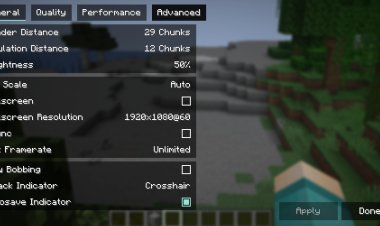
Best Settings for MakeUp – Ultra Fast Shaders (Optional)
For maximum performance:
-
Disable motion blur
-
Lower shadow resolution
-
Reduce render distance
-
Use default or low preset
These settings help maintain high FPS on low-end PCs.
Common Issues & Fixes
Shader not appearing?
-
Make sure it’s in the
shaderpacksfolder -
Keep the file zipped
Low FPS or lag?
-
Lower shader quality
-
Update graphics drivers
-
Allocate more RAM
Game crashes?
-
Verify Minecraft and shader versions match
-
Reinstall Iris if needed
Final Thoughts: Best Way to Download MakeUp – Ultra Fast Shaders
Installing MakeUp – Ultra Fast shaders with Iris is the best method for smooth performance and easy setup. This shader pack is ideal for players who want better visuals without lag, especially on weaker systems.
If you want one of the best low-end Minecraft shaders, this setup is hard to beat.
Quick Download Links
-
Iris Shader Loader: https://www.irisshaders.dev/
-
MakeUp – Ultra Fast Shaders: https://www.curseforge.com/minecraft/shaders/makeup-ultra-fast-shader
-
Java Download: https://www.oracle.com/java/technologies/downloads/#java21