How To Download Litematica For Minecraft (2026 Guide)
 mcpecentraladmin
How To Download Litematica For Minecraft (2026 Guide)
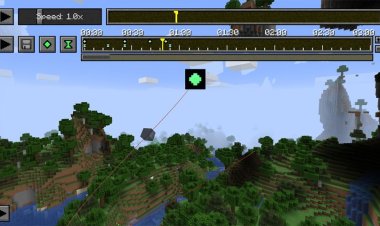
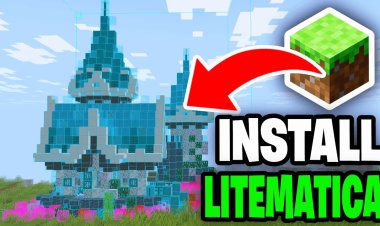
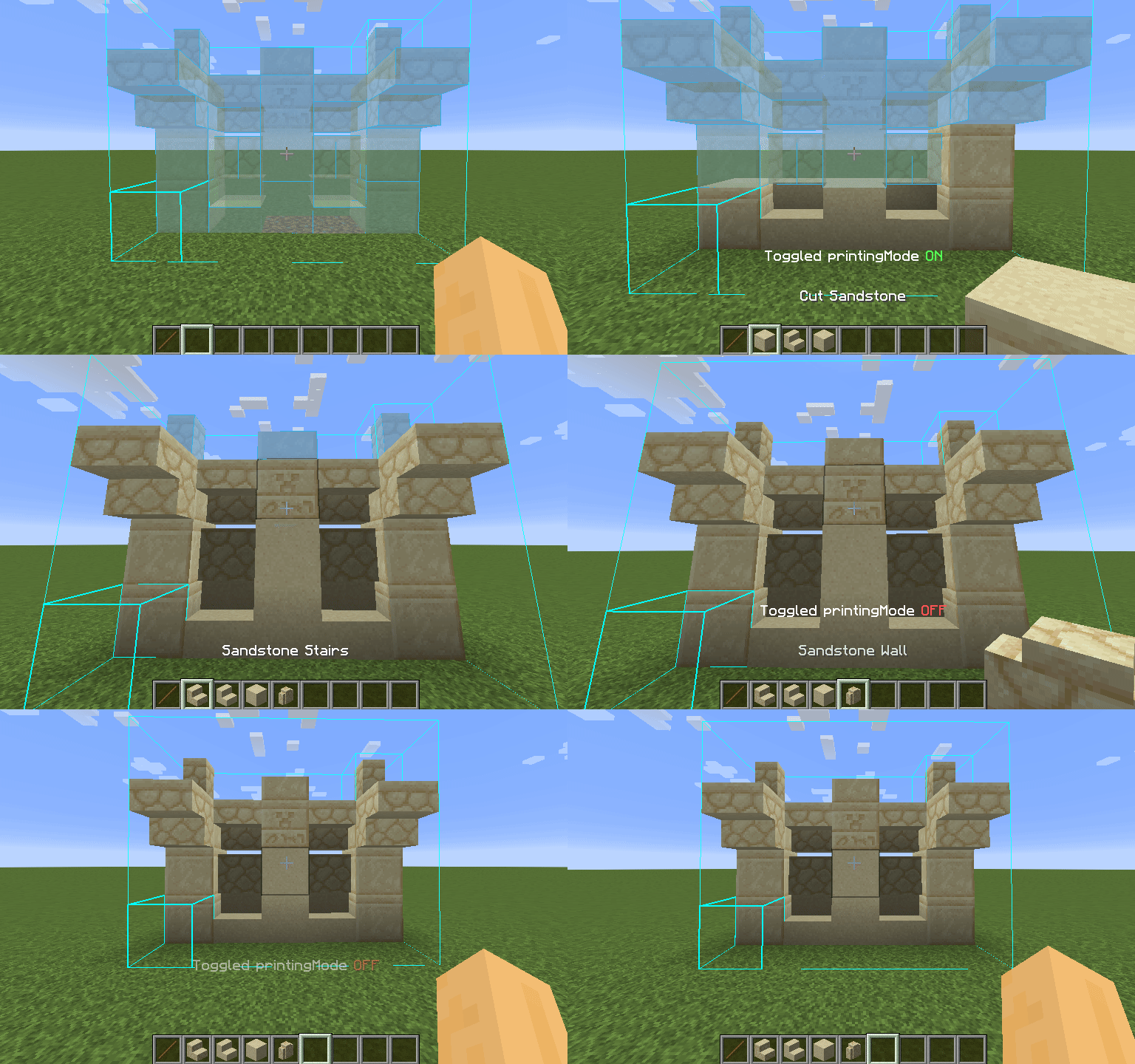
Litematica is one of the most powerful building and schematic mods for Minecraft, allowing players to create, load, and follow blueprints with extreme precision. In this 2026 updated guide, you’ll learn how to download and install Litematica for Minecraft step by step, using the correct mod loader, required dependencies, and Java version.
This guide works for Minecraft Java Edition and is optimized for the latest Minecraft versions in 2026.
What Is Litematica in Minecraft?
Litematica is a Minecraft schematic mod that lets you:
-
Load schematics and blueprints
-
Build structures block-by-block with holograms
-
Copy builds from creative to survival
-
Improve accuracy and speed when building mega bases
It’s widely used by technical Minecraft players, redstone builders, and survival builders.
Requirements Before Installing Litematica
Before installing Litematica, make sure you have:
-
Minecraft Java Edition
-
Fabric Mod Loader
-
Malilib (required dependency)
-
Java 21 (recommended for modded Minecraft in 2026)
Step-by-Step: How To Download Litematica For Minecraft (2026)
Step 1: Download Fabric Mod Loader
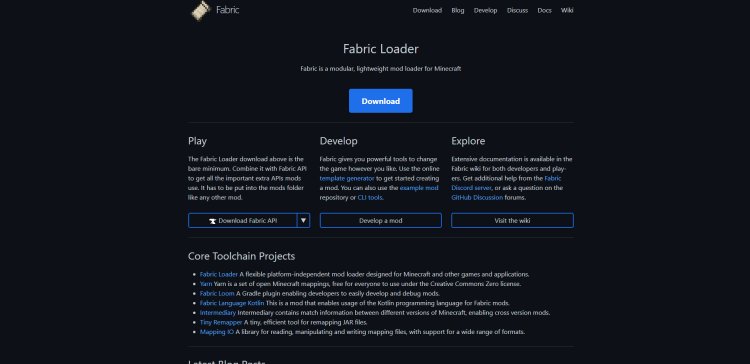
Litematica requires Fabric to run.
Download Fabric here:
https://fabricmc.net/
-
Select your Minecraft version
-
Click Download Installer
-
Fabric is required to load Litematica correctly
Step 2: Download the Litematica Mod
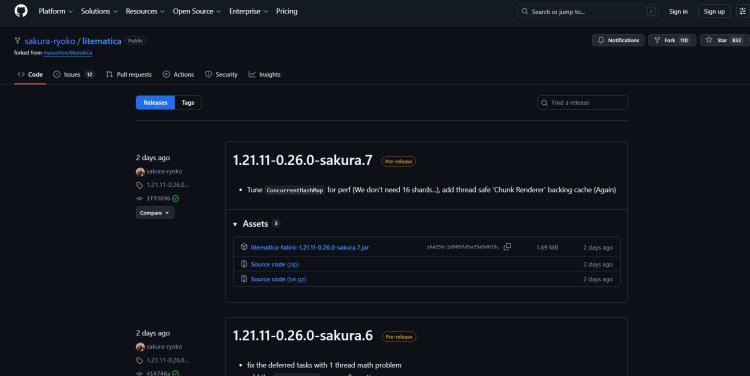
Download the official Litematica mod from GitHub:
https://github.com/sakura-ryoko/litematica/releases
Important:
Make sure the Litematica version matches your Minecraft version exactly.
Step 3: Download Malilib (Required Dependency)
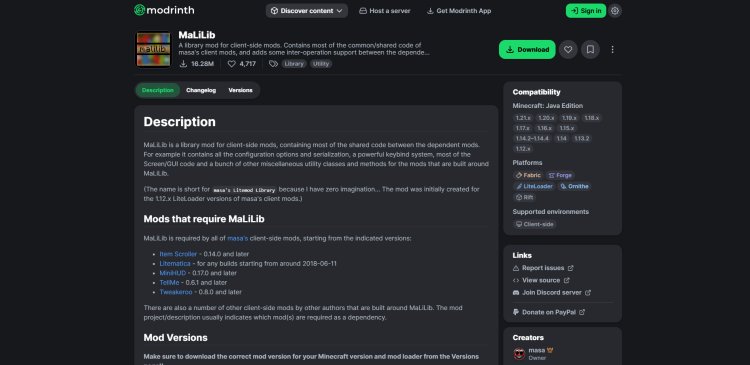
Litematica will not work without Malilib.
Download Malilib here:
https://modrinth.com/mod/malilib
-
Choose the same Minecraft version as Litematica
-
Version consistency is critical to avoid crashes
Step 4: Download Java 21 (Required in 2026)

Modern modded Minecraft requires Java 21.
Download Java 21 here:
https://www.oracle.com/java/technologies/downloads/#java21
If Minecraft crashes or Fabric won’t launch, Java is usually the issue.
Step 5: Install Fabric Using Java


-
Open the Fabric installer using Java
-
Select your Minecraft version
-
Click Install
-
Wait for confirmation
This creates a Fabric profile inside the Minecraft Launcher.
Step 6: Enable Fabric in the Minecraft Launcher
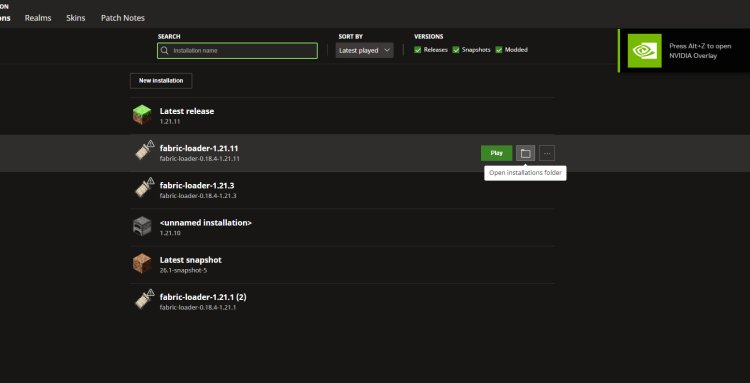
-
Open the Minecraft Launcher
-
Select the Fabric installation
-
Ensure “Modded” is turned ON
-
Do not launch yet
Step 7: Add Litematica and Malilib to the Mods Folder
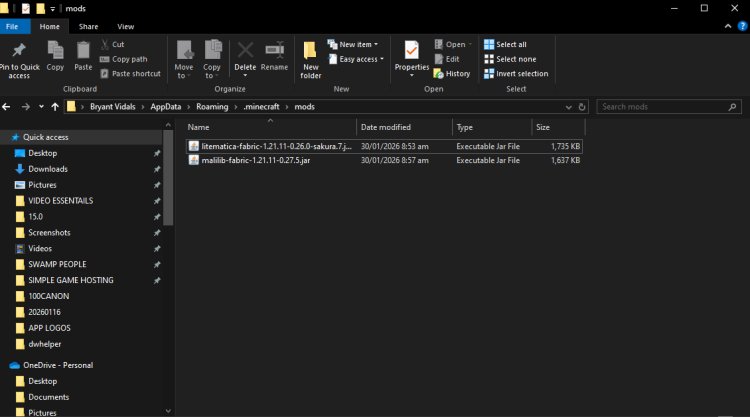
-
Open your Minecraft installation folder
-
Locate the folder named mods (all lowercase)
-
Drag and drop:
-
litematica.jar -
malilib.jar
-
Do not unzip the files.
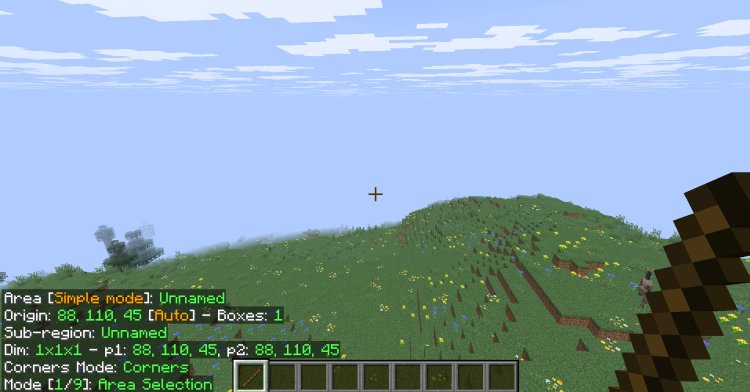
Step 8: Launch Minecraft and Use Litematica
-
Start Minecraft using Fabric
-
Enter a world
-
Litematica is now installed and ready to use
You can access Litematica settings using its default keybinds inside the game.
Common Litematica Installation Issues (Fixes)
Minecraft crashes on launch
-
Malilib version doesn’t match Minecraft version
-
Java is outdated
-
Fabric version is incorrect
Litematica not showing
-
Files are not in the
modsfolder -
You launched vanilla Minecraft instead of Fabric
Why Use Litematica in 2026?
Litematica remains one of the best Minecraft building mods in 2026 because it:
-
Saves hours of build time
-
Works perfectly with survival worlds
-
Is essential for technical Minecraft builds
-
Supports modern Minecraft versions via Fabric