How To Fix Hytale Multiplayer Not Working (Easy Guide!)
 mcpecentraladmin

So you can play Hytale singleplayer just fine, but when you try to join a multiplayer server or a friend, everything breaks? Here’s what that usually looks like:
Symptoms
-
Your internet is fast (YouTube works, Discord works, etc.)
-
Singleplayer loads perfectly
-
Multiplayer loads super slow or doesn’t load at all
-
You can’t move or interact, but your friend can see you
-
You are playing on Windows PC
If this sounds like you — don’t worry — there’s a fix!
Why Does This Happen?
Some computers have weird problems with their network drivers (especially Intel or Realtek Wi-Fi/Ethernet cards).
Hytale uses a new, modern internet technology called QUIC. It’s super fast, but not all PCs fully support it yet. Because of that, multiplayer can break.
This problem can happen on:
✔ Wi-Fi
✔ Ethernet
✔ New computers
✔ Old computers
How To Confirm If This Is Your Problem
If you have a USB Ethernet dongle, plug it in and try multiplayer again.
➡ If multiplayer suddenly works — then this guide is for you.
How To Fix It (Step-By-Step)
You don’t need to do everything — try each step and stop when multiplayer works!
STEP 1 — Open Network Settings
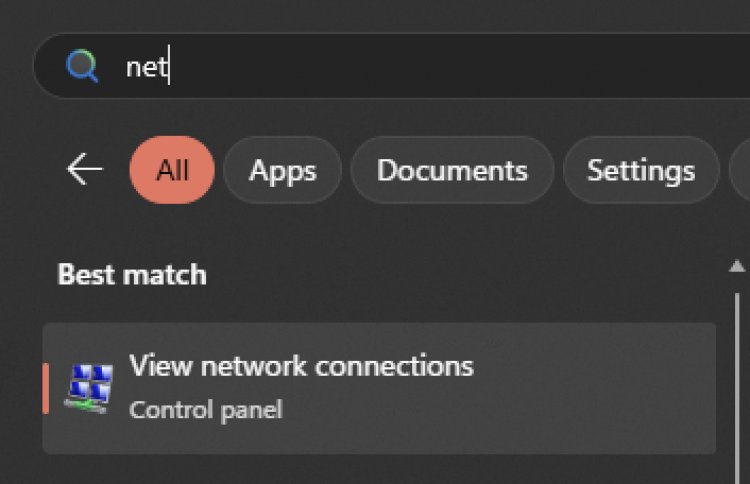
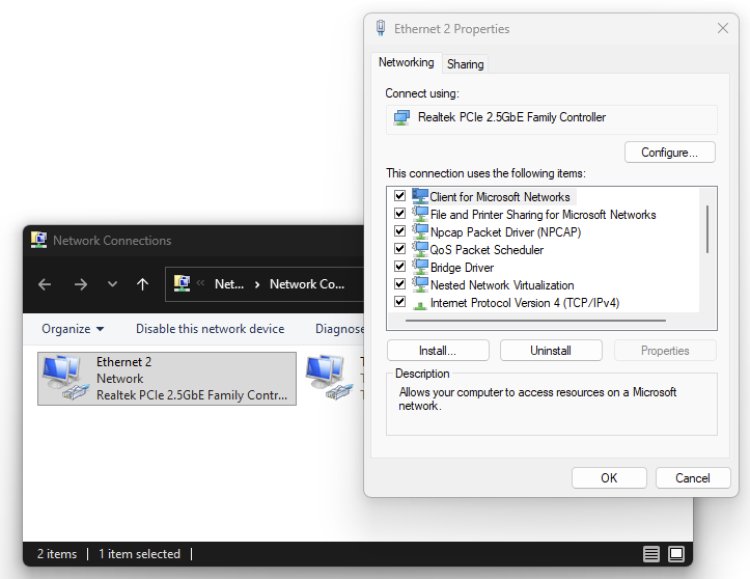
-
Open Start Menu
-
Type: View network connections
-
Click the Control Panel result
-
Right-click your main internet connection
-
Click Properties
-
Click Configure
SOLUTION 1 — Disable Priority & VLAN
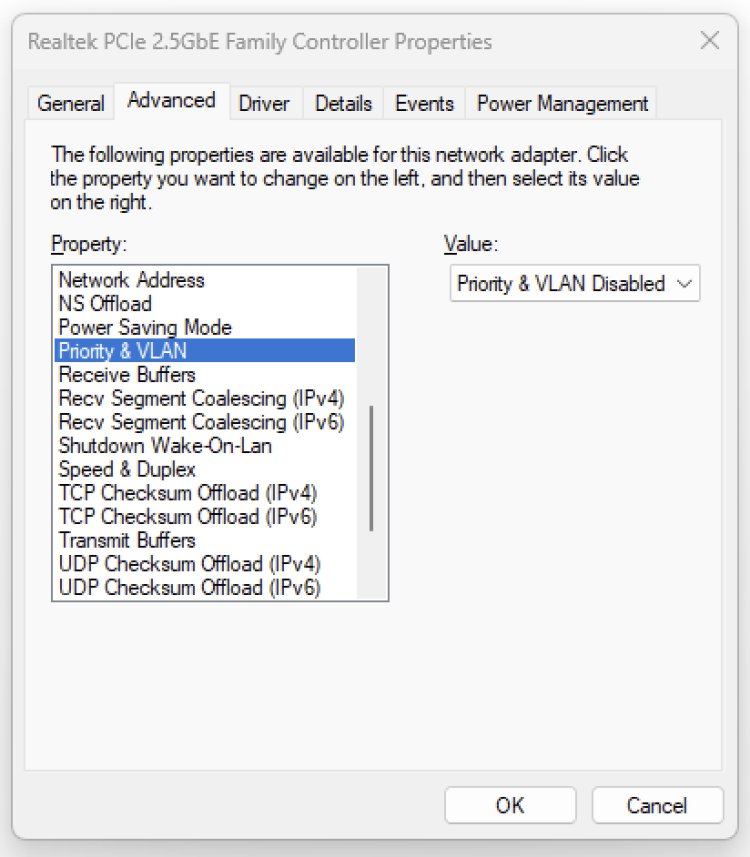
Inside Advanced tab:
➡ Find: Priority & VLAN
➡ Change to: Disabled
Click OK, wait for internet to come back, then test Hytale multiplayer.
SOLUTION 2 — Disable RSC (Recv. Segment Coalescing)
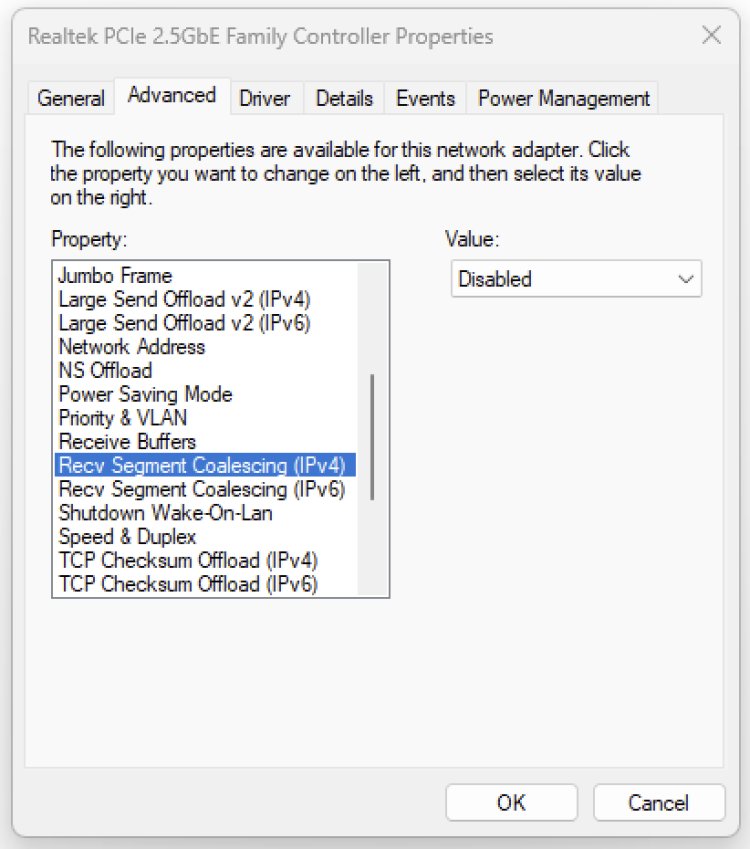
Find these and set both to Disabled:
✔ Recv. Segment Coalescing (IPv4)
✔ Recv. Segment Coalescing (IPv6)
Click OK, wait, test multiplayer again.
SOLUTION 3 — Disable Power Saving & Fancy Stuff
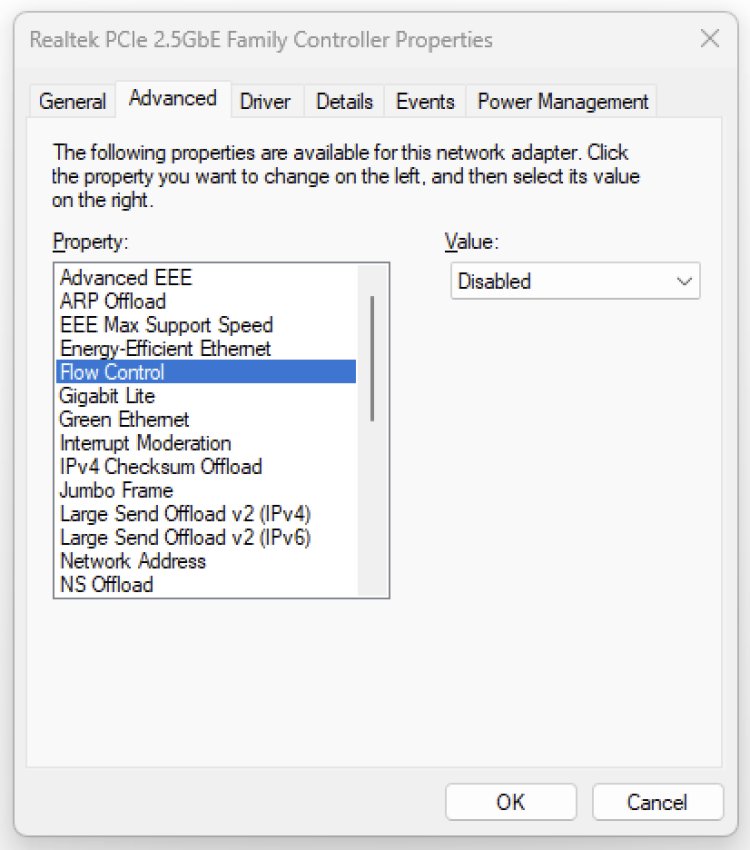
Change these to Disabled:
-
Advanced EEE
-
ARP Offload
-
Energy-Efficient Ethernet
-
Flow Control
-
Green Ethernet
Click OK, test again.
SOLUTION 4 — Full Fix (Super Detailed)
Only do this if nothing else worked.
This changes a lot of settings for Realtek/Intel drivers.
Use these values:
Advanced EEE - Disabled
ARP Offload - Disabled
EEE Max Support Speed - 1.0 Gbps Full Duplex
Energy-Efficient Ethernet - Disabled
Flow Control - Disabled
Gigabit Lite - Disabled
Green Ethernet - Disabled
Interrupt Moderation - Disabled
IPv4 Checksum Offload - Rx & Tx Enabled
Jumbo Frame - Disabled
Large Send Offload v2 (IPv4) - Disabled
Large Send Offload v2 (IPv6) - Disabled
Maximum Number of RSS Queues - 4 Queues
Network Address - Not Present
NS Offload - Disabled
Power Saving Mode - Disabled
Priority & VLAN - Disabled
Receive Buffers - 512
Receive Side Scaling - Enabled
Shutdown Wake-On-Lan - Disabled
Speed & Duplex - Auto
TCP Checksum Offload (IPv4) - Disabled
TCP Checksum Offload (IPv6) - Disabled
Transmit Buffers - 1024 (or 2048)
UDP Checksum Offload (IPv4) - Disabled
UDP Checksum Offload (IPv6) - Disabled
VLAN ID - 0
Wake on Magic Packet - Disabled
Wake on Magic Packet (S0ix) - Disabled
Wake on Pattern Match - Disabled
WOL & Shutdown Link Speed - Not Speed Down
After changing everything — restart your PC and try Hytale multiplayer again.
Final Tips
If your Hytale multiplayer still doesn’t work:
✔ Update your network driver
✔ Try a USB Wi-Fi dongle
✔ Try Ethernet instead of Wi-Fi
✔ Restart your router
✔ Check firewall/antivirus
Conclusion
Hytale multiplayer not working is usually not because of your internet — it’s because Windows drivers don’t like QUIC. Disabling certain features makes multiplayer work again for most players.
If you play with friends a lot, this fix is worth doing!